Mastering your finances starts with understanding where your money goes. This guide walks you through creating a powerful expense tracking spreadsheet, empowering you to take control of your spending and achieve your financial goals. We’ll cover everything from choosing the right software and designing an effective layout to analyzing your data and visualizing your spending habits. Whether you’re a seasoned spreadsheet user or a complete beginner, this comprehensive tutorial will equip you with the skills to build a personalized expense tracker that works for you.
From basic data entry to advanced features like charting and budgeting tools, we’ll explore practical strategies for accurate record-keeping and insightful financial analysis. Learn how to leverage the power of spreadsheets to identify spending trends, create a realistic budget, and make informed decisions about your financial future. By the end, you’ll not only have a functional expense tracker but also a deeper understanding of your personal finances.
Understanding Expense Tracking Needs
Effective expense tracking is crucial for managing your finances and achieving your financial goals. A well-designed spreadsheet can provide a clear picture of your spending habits, allowing you to identify areas where you can save money and make informed financial decisions. This section will guide you through the essential aspects of setting up your expense tracking system.Understanding your spending habits is the first step towards effective budgeting.
By carefully categorizing and recording your expenses, you can gain valuable insights into where your money is going and identify potential areas for improvement. This will empower you to make informed decisions about your spending and saving habits.
Expense Tracking Spreadsheet Design
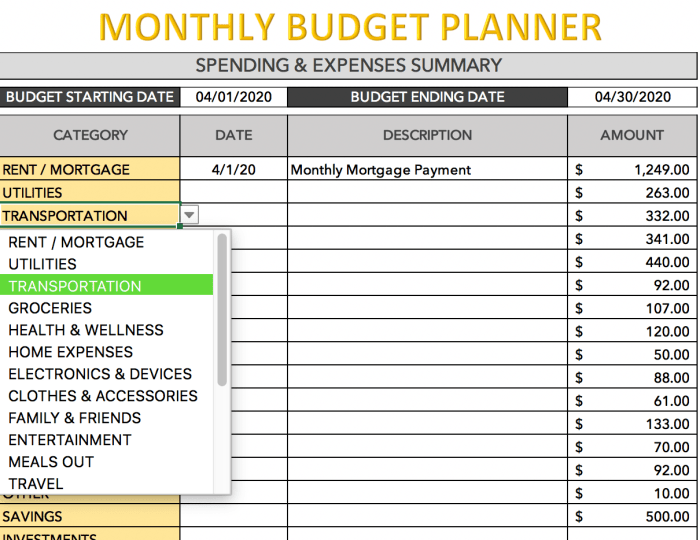
A simple yet effective expense tracking spreadsheet requires only four key columns: Category, Date, Description, and Amount. The “Category” column allows you to group similar expenses, while the “Date” column helps track spending over time. The “Description” column provides details about each transaction, and the “Amount” column records the monetary value. Below is an example of how this might look:
| Category | Date | Description | Amount |
|---|---|---|---|
| Groceries | 2024-03-08 | Weekly grocery shopping at Safeway | $150 |
| Transportation | 2024-03-08 | Gas for the car | $50 |
| Dining Out | 2024-03-10 | Dinner at Italian restaurant | $75 |
| Utilities | 2024-03-15 | Electricity bill | $120 |
| Entertainment | 2024-03-20 | Movie tickets | $30 |
Categorizing Expenses for Effective Budgeting
Categorizing expenses is essential for understanding your spending patterns. By grouping similar expenses together, you can easily see where the majority of your money is going. For example, if you consistently spend a large amount on dining out, you can identify this as an area where you might be able to reduce spending. This detailed analysis enables you to create a more realistic and effective budget.
Effective categorization allows for easier identification of areas for potential savings.
Common Expense Categories
A comprehensive list of common expense categories for a personal budget spreadsheet should include, but is not limited to: Housing (rent/mortgage, property taxes), Transportation (gas, public transport, car payments), Groceries, Dining Out, Utilities (electricity, water, gas), Entertainment, Clothing, Healthcare, Personal Care, Debt Payments (loans, credit cards), Subscriptions (streaming services, memberships), Travel, Education, and Miscellaneous. This list can be customized to reflect your individual spending habits.
Best Practices for Accurate Expense Recording
Accurate expense recording is paramount for reliable budget analysis. It’s crucial to record every expense as soon as possible after it occurs. Use receipts whenever possible to ensure accuracy in recording amounts and descriptions. Regularly review your spreadsheet to ensure accuracy and identify any discrepancies. Consider using a mobile app to simplify expense entry.
Consistency in recording is key to gaining a true understanding of your spending habits. Developing a routine for recording expenses, such as doing it daily or weekly, will greatly improve accuracy and reduce the chance of forgetting transactions.
Designing the Spreadsheet Structure
Creating a well-structured spreadsheet is crucial for effective expense tracking. A logical layout simplifies data entry and makes analyzing your spending habits much easier. This section details how to design a spreadsheet that facilitates efficient expense tracking and provides valuable insights into your finances.
The foundation of your expense tracking spreadsheet lies in its column structure. Each column represents a key piece of information about a particular expense. A well-designed layout allows for easy data entry and powerful analysis using formulas.
Spreadsheet Column Design and Formulas
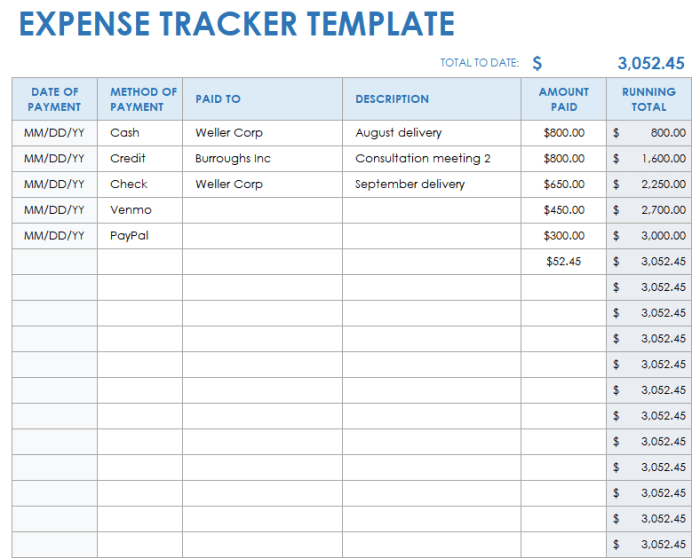
The optimal spreadsheet structure includes the following columns: Date, Description, Category, Amount, and Running Total. The ‘Date’ column records the transaction date. ‘Description’ provides a brief explanation of the expense. ‘Category’ allows for categorization (e.g., Groceries, Transportation, Entertainment). ‘Amount’ records the monetary value of the expense.
Finally, the ‘Running Total’ column dynamically calculates the cumulative expenses up to that point.
Formulas are essential for automating calculations. The ‘Running Total’ column uses a simple formula that adds the current expense amount to the previous running total. For example, if cell E2 contains the running total from the previous row, and cell D3 contains the current expense amount, the formula in cell E3 would be: =E2+D3. This will accumulate expenses automatically.
Categorized Expense Summaries
To calculate total expenses per category, you can use the SUMIF function. This function sums values based on a specified criterion. For instance, to calculate the total spent on “Groceries,” assuming your category column is ‘C’ and amount column is ‘D’, and you want the total in cell F2, the formula would be: =SUMIF(C:C,"Groceries",D:D). This formula sums all values in column D where the corresponding cell in column C is “Groceries.” You can repeat this for each category.
For a monthly summary, you could add a column for the month and then use the SUMIFS function, which allows multiple criteria. This would let you sum expenses based on both the month and category. A similar approach, using YEAR function, could provide yearly summaries.
Conditional Formatting for Expense Highlighting
Conditional formatting helps visualize spending patterns. By highlighting expenses exceeding a predetermined threshold, you can quickly identify areas requiring attention. For example, you can highlight any expense over $100 in the ‘Amount’ column (column D) by selecting the entire column, going to Conditional Formatting, and setting a rule to highlight cells greater than 100. You can customize the formatting (color, font style) as desired.
This visual cue makes it easier to spot unusually high expenses and analyze your spending habits more effectively. It allows for quick identification of potential areas for budget adjustments.
Monthly and Yearly Expense Summaries
Calculating monthly and yearly summaries involves using the SUMIF or SUMIFS function in conjunction with date extraction functions like MONTH and YEAR. For monthly summaries, a formula could look like this (assuming date in column A and amount in column D): =SUMIFS(D:D,A:A,">="&DATE(YEAR(TODAY()),MONTH(TODAY()),1),A:A,"<="&EOMONTH(TODAY(),0)). This sums expenses within the current month. A similar approach, using YEAR instead of MONTH, can calculate yearly totals.
These summary functions provide a concise overview of your spending patterns over time, helping you identify trends and make informed financial decisions.
Inputting and Managing Data
Efficiently entering and managing your expense data is crucial for the success of your expense tracking spreadsheet. Accurate data input ensures reliable analysis and informed financial decisions. This section details the process, offering tips for minimizing errors and maximizing data integrity.
Entering expense data involves a systematic approach to ensure accuracy and consistency. Begin by carefully reviewing your receipts and financial documents to gather all necessary information. Then, systematically enter the data into your spreadsheet, paying close attention to detail. Consistency in data entry is paramount for accurate analysis.
Data Entry Steps
The following steps provide a clear guide to entering expense data into your spreadsheet. Following these steps will help maintain accuracy and consistency throughout your expense tracking process.
- Identify the relevant columns: Before starting, clearly understand the purpose of each column in your spreadsheet (e.g., Date, Description, Category, Amount, Payment Method).
- Enter data sequentially: Start with the oldest expense and work your way forward chronologically. This approach helps maintain order and prevents missing entries.
- Use consistent formatting: Maintain consistent date formats (e.g., MM/DD/YYYY), currency symbols, and decimal places. Inconsistency can lead to errors in calculations and analysis.
- Double-check entries: After entering each expense, review the data to ensure accuracy. Compare the spreadsheet entry to the original source document (receipt, bank statement, etc.).
- Regularly save your work: Save your spreadsheet frequently to prevent data loss due to unexpected computer issues or accidental closures.
Preventing Data Entry Errors
Data entry errors can significantly impact the accuracy of your expense tracking. Employing preventative measures helps ensure data reliability.
- Use copy-paste cautiously: While convenient, copy-pasting can introduce errors if formatting isn't consistent. Always verify pasted data.
- Employ visual cues: Use color-coding or conditional formatting to highlight potential errors (e.g., unusually high expenses).
- Regularly review and reconcile: Compare your spreadsheet data with your bank statements or credit card statements on a regular basis (e.g., weekly or monthly) to identify discrepancies.
- Implement a checksum or control total: Calculate a checksum (a mathematical value based on the data) to verify data integrity. Any change in the data will alter the checksum, alerting you to potential errors.
Importing Data from External Sources
Importing data from bank statements or other financial sources can significantly streamline the expense tracking process. However, ensure data compatibility before importing.
Many spreadsheet programs offer import functionalities. Typically, you'll need to select the import option, specify the file type (e.g., CSV, QFX), and choose the appropriate data mapping to align the imported columns with your spreadsheet's structure. Always review the imported data for accuracy and consistency after the import is complete. Manual adjustments may be necessary to correct any discrepancies or errors introduced during the import process.
Data Validation
Data validation is a crucial step in ensuring data consistency and accuracy within your expense tracking spreadsheet. It involves setting rules that restrict the type of data entered into specific cells, minimizing errors and improving data reliability.
For example, you could use data validation to ensure that the "Amount" column only accepts numerical values, or that the "Category" column only accepts values from a predefined list (e.g., "Groceries," "Transportation," "Rent"). This prevents incorrect data entry and ensures consistency across your expense records. Most spreadsheet programs provide built-in data validation tools within their data menu. Consult your program's help documentation for detailed instructions on implementing data validation rules.
Analyzing and Visualizing Expenses
Analyzing your expense data goes beyond simply recording numbers; it's about understanding your spending habits to make informed financial decisions. Visualizing this data through charts and graphs provides a clear and concise overview of your financial landscape, making it easier to identify areas for potential savings or adjustments. This section details how to leverage your spreadsheet's capabilities for insightful analysis and visualization.
Creating a Bar Chart of Monthly Expenses by Category
A bar chart effectively displays monthly expenses categorized by type (e.g., housing, food, transportation). To create this chart, first ensure your spreadsheet data is organized with columns for "Month," "Expense Category," and "Amount." Select this data range. Then, navigate to your spreadsheet's chart creation tool (the exact steps may vary slightly depending on your software, but generally involve selecting "Insert" then "Chart" or a similar option).
Choose the "Bar chart" type. The resulting chart will visually represent the amount spent in each category for each month, allowing for easy comparison across time and categories. For example, a taller bar for "Food" in July compared to "Food" in June indicates increased food expenses that month. The chart's x-axis will display the months, and the y-axis will represent the monetary value of expenses.
Each bar will represent a specific expense category for a given month.
Creating a Pie Chart Showing Expense Proportions
A pie chart provides a clear picture of the proportion of your total expenses allocated to each category. Similar to creating a bar chart, organize your data with "Expense Category" and "Amount" columns. Sum the "Amount" column to get your total monthly expenditure. Then, select the "Expense Category" and "Amount" data and choose the "Pie chart" option from your spreadsheet's chart creation tools.
The resulting chart will show each expense category as a slice of the pie, with the size of each slice directly proportional to its percentage of the total expenses. For instance, a large slice for "Housing" indicates a significant portion of your budget is allocated to housing costs. The chart will typically include labels indicating both the category and its corresponding percentage of the total.
Identifying Trends and Patterns Using Spreadsheet Functions
Spreadsheet functions offer powerful tools for analyzing spending patterns. The `SUMIF` function, for example, can calculate the total spending within a specific category over a period. The formula `=SUMIF(Category_Range,"Category_Name",Amount_Range)` sums all amounts where the category matches "Category_Name." `AVERAGE` calculates average monthly spending in a category. `MAX` and `MIN` identify the highest and lowest expenses within a given category or period.
By using these functions across different time periods, you can easily observe trends—for example, consistently higher spending on dining out during summer months. Furthermore, combining these functions with charting capabilities provides a powerful visual representation of these trends.
Creating a Simple Budget Based on Analyzed Expenses
Once you've analyzed your expenses, creating a budget becomes straightforward. Based on your average monthly spending in each category, you can set realistic budget limits. You can use the spreadsheet to create a new sheet or section dedicated to your budget. List each expense category and input your desired monthly budget allocation for each. You can then compare your actual spending (from your expense tracking sheet) to your budgeted amounts to monitor your progress and identify areas where adjustments may be needed.
For example, if your average monthly dining-out expenses are $200, but your budget allows for only $150, you can actively work towards reducing this category's spending.
Expense Tracking Best Practices
Maintaining an accurate and up-to-date expense tracking spreadsheet requires consistent effort and adherence to best practices. Effective expense tracking isn't just about recording numbers; it's about developing a system that provides valuable insights into your spending habits and facilitates better financial management. This section Artikels key strategies for maximizing the effectiveness of your expense tracking system.Regular review and adjustment of your budget based on your tracked expenses is crucial for maintaining financial health.
By analyzing spending patterns, you can identify areas where you're overspending and make informed decisions to reallocate resources. This proactive approach prevents financial surprises and helps you achieve your financial goals more effectively.
Maintaining Accurate and Up-to-Date Expense Records
Accuracy and timeliness are paramount in expense tracking. Delaying entries can lead to forgotten expenses and inaccurate financial assessments. To ensure accuracy, aim for daily or at least weekly updates. Develop a routine, such as recording expenses at the end of each day or synchronizing your spreadsheet with your bank account statements regularly. Consider using a digital receipt scanner to store digital copies of your receipts for easy access and reference.
Cross-referencing your spreadsheet with bank statements helps to catch any discrepancies.
Benefits of Regular Expense Review and Budget Adjustment
Regular review of your expense tracking spreadsheet offers several significant advantages. Firstly, it allows you to identify spending trends and patterns, highlighting areas where you might be overspending. Secondly, it enables proactive budget adjustments. For example, if you notice you're consistently exceeding your allocated amount for dining out, you can adjust your budget for the following month to compensate.
Thirdly, regular reviews improve your financial awareness and empower you to make more informed financial decisions. This fosters a sense of control over your finances and contributes to long-term financial stability. For instance, if you consistently find yourself underspending in a particular category, you might consider reallocating those funds to another area or saving them.
Improving Accuracy and Efficiency of Expense Tracking
Several methods can enhance the accuracy and efficiency of your expense tracking process. Categorizing your expenses consistently is crucial. Use a standardized categorization system that's easy to understand and maintain. Consider using a drop-down menu in your spreadsheet to prevent inconsistencies in data entry. Automating data entry, where possible, can significantly improve efficiency.
Linking your spreadsheet to your bank account (if your bank allows it) can automate the recording of transactions. Regularly backing up your spreadsheet to a cloud storage service or external hard drive safeguards your data against loss or damage.
Common Mistakes to Avoid When Using an Expense Tracking Spreadsheet
Avoiding common mistakes is essential for maintaining the integrity of your expense tracking. Inconsistent categorization leads to inaccurate analysis. Failing to reconcile your spreadsheet with bank statements can result in discrepancies and inaccurate financial summaries. Not backing up your data leaves you vulnerable to data loss. Ignoring your expense tracking spreadsheet after initial setup renders it useless.
Forgetting to update your spreadsheet regularly leads to outdated information and unreliable financial assessments. Finally, not utilizing the data for budgeting and financial planning defeats the purpose of tracking your expenses in the first place.
EXPENSE TRACKING
This section delves into advanced features to enhance your expense tracking spreadsheet, transforming it from a simple record-keeper into a powerful financial management tool. We'll explore techniques for automating recurring expenses, incorporating budgeting, integrating with other financial tools, and creating insightful custom reports.
Recurring Expenses and Planned Expenses
Implementing recurring expenses and planned expenses significantly improves the spreadsheet's predictive capabilities. Recurring expenses, such as rent or subscriptions, can be automated using formulas. For example, you could create a separate sheet listing recurring expenses with their amounts and payment dates. A formula on your main expense sheet could then automatically populate these expenses for each month.
Planned expenses, such as upcoming holiday travel or a large purchase, can be added to the spreadsheet as future entries, allowing for better financial planning and avoiding unexpected shortfalls. This provides a holistic view of both current and future financial commitments.
Budgeting Tools
Integrating budgeting tools allows for direct comparison between actual expenses and planned spending. This is achieved by creating budget categories that align with your expense categories. You can then use formulas to calculate the difference between budgeted and actual amounts for each category. A simple subtraction formula (Budgeted Amount - Actual Amount) will show the variance, allowing for quick identification of overspending or underspending areas.
Visual aids like charts can further highlight these variances. For instance, a bar chart comparing budgeted vs. actual spending in each category provides a clear visual representation of your financial performance.
Integration with Other Financial Management Tools
While not always directly integrable, your expense tracking spreadsheet can be effectively used in conjunction with other financial tools. For example, you can manually import transaction data from your bank account statements into the spreadsheet. This allows you to consolidate all your financial information in one place, providing a comprehensive view of your financial health. Alternatively, you can use the spreadsheet to plan for larger financial goals, then cross-reference the progress against your savings goals tracked in a separate financial management application.
This integrated approach streamlines your financial overview.
Custom Reports and Dashboards
Creating custom reports and dashboards allows for personalized financial insights. You can use spreadsheet features to generate various reports, such as monthly expense summaries, category-wise spending breakdowns, and year-to-date totals. These reports can be tailored to your specific needs. Dashboards can be designed to visually represent key financial metrics, such as total expenses, budget variances, and savings progress.
Using charts and graphs, you can easily monitor your financial health and make informed decisions. For example, a dashboard might display a pie chart showing the percentage of expenses allocated to different categories, alongside a line graph illustrating your spending trends over time.
Creating an effective expense tracking spreadsheet is a crucial step towards financial clarity and control. By following the steps Artikeld in this guide, you'll gain valuable insights into your spending habits, enabling you to make informed decisions about your budget and achieve your financial aspirations. Remember, consistent data entry and regular review are key to maximizing the benefits of your personalized expense tracker.
Start tracking your expenses today and unlock the potential for a more financially secure tomorrow.
Helpful Answers
Can I use a mobile app instead of a spreadsheet?
Yes, many mobile apps offer expense tracking features. Spreadsheets offer more customization and potentially better data analysis capabilities, however.
How often should I update my spreadsheet?
Ideally, update your spreadsheet daily or at least weekly to maintain accuracy and avoid forgetting expenses.
What if I make a mistake in my spreadsheet?
Most spreadsheet programs allow for easy editing and correction of data. Regular backups are also recommended.
Can I share my spreadsheet with others?
This depends on the software you use. Cloud-based options like Google Sheets allow for easy sharing and collaboration.


